
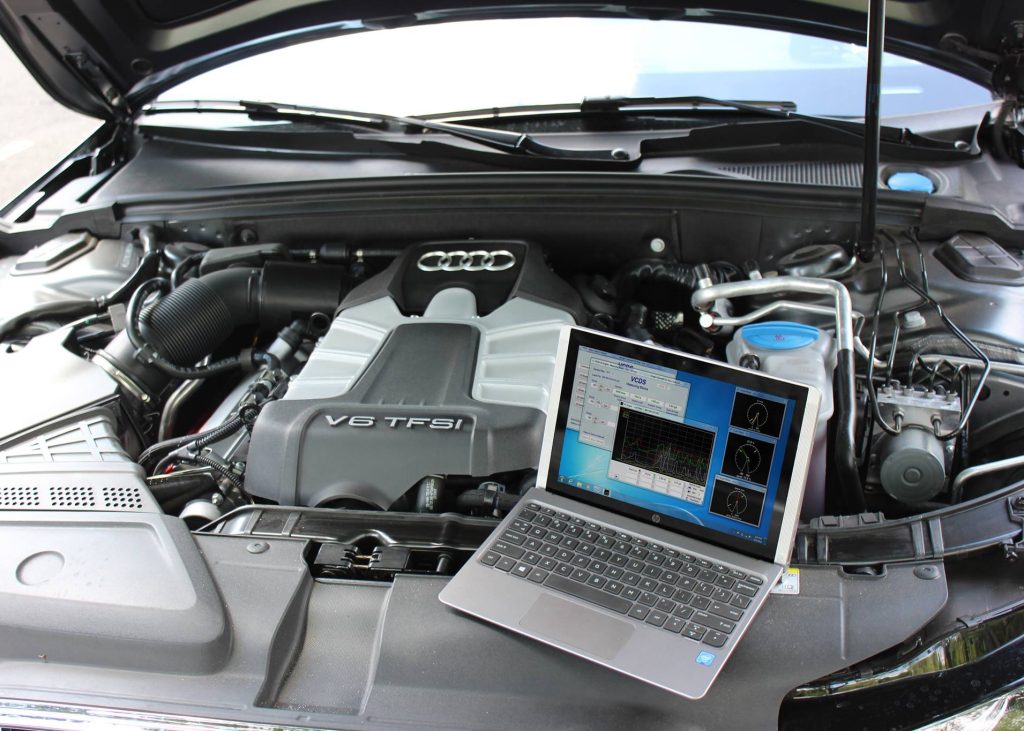
User Guide for VCDS HEX-NET Interface
Discover the perfect VCDS diagnostic solution with the HEX-NET interface. This professional wireless tool makes diagnostics on VW-based vehicles a breeze. Whether you’re setting up quickly or diving into advanced configurations, enhance your performance and get the most out of your tool with this brief user’s guide.
1. Getting Started: Physical Features
The HEX-NET interface features three primary LED indicators and a multi-function red button.
LED Indicator Guide
- First LED (Vehicle Status): Shows communication with the car. It typically flashes and then turns solid green. During active scanning, it flashes green and red.
- Second LED (Wi-Fi Status): * Solid Amber: Access Point (AP) mode (broadcasting its own signal).
- Solid Green: Infrastructure mode (connected to an existing network).
- Third LED (CPU Status): Flashing green indicates normal activity; flashing red means the CPU is busy.
The Red Button Functions
Located between the second and third LEDs, this button performs the following:
- Short Click: Toggles between Access Point and Infrastructure modes.
- 15-Second Hold: Resets the Wi-Fi password.
- 45-Second Hold: Performs a full factory reset.
2. Initial Registration
New interfaces must be registered with Ross-Tech before they lock after a limited number of uses.
- Connect the HEX-NET to your computer via USB and open VCDS.
- Go to Options > Test. If registration is required, it will state “Must Register”.
- Click Config to open the Utility, navigate to the Registration tab, and fill out the form.
- After submitting, you will receive a Transaction ID via email. Copy this into the utility and click Finalise Registration.
3. Wi-Fi Configuration
The HEX-NET can operate in two modes to provide flexibility for workshop or mobile use.
Access Point (AP) Mode
This is the default mode for mobile use where no external Wi-Fi is available.
- The HEX-NET broadcasts its own Wi-Fi signal (SSID is the device’s serial number).
- Connect your laptop, tablet, or phone directly to this signal.
- In VCDS Options, ensure “NET” is selected before clicking Test.
Infrastructure Mode
Use this to connect the HEX-NET to your home or workshop router.
- Connect via USB and open the VCDS Interface Configuration Utility (click Config in VCDS Options).
- Go to the Wi-Fi tab and click Scan for New Network.
- Select your network, enter the password, and click OK.
- The middle LED will turn solid green once connected. Note: The HEX-NET can store up to seven different Wi-Fi profiles.
4. VCDS Mobile
For iOS and Android users, the VCDS Mobile app (available on App Store/Google Play) simplifies connecting your mobile device to the HEX-NET.
- Ensure your mobile device is on the same network as the HEX-NET (Infrastructure) or connected directly to it (AP Mode).
- The app will automatically identify the interface and provide the IP address for access.
5. Maintenance & Updates
Ross-Tech recommends checking for firmware updates at least once a month to ensure compatibility with the latest vehicles.
- Connect the interface via USB (vehicle connection is not required for updates).
- Open VCDS, go to Options > Config.
- Navigate to the Update tab and click Check for Updates.
- If an update is found, click Download Update. Ensure your computer remains online during this process.
For further support and technical resources, visit the Ross-Tech Wiki or the official forums.
If you work on VW-based vehicles, VCDS is a must-have. Find out more by calling 0800 195 1245 or emailing sales@v-techuk.com